
How to set up your Google app password.
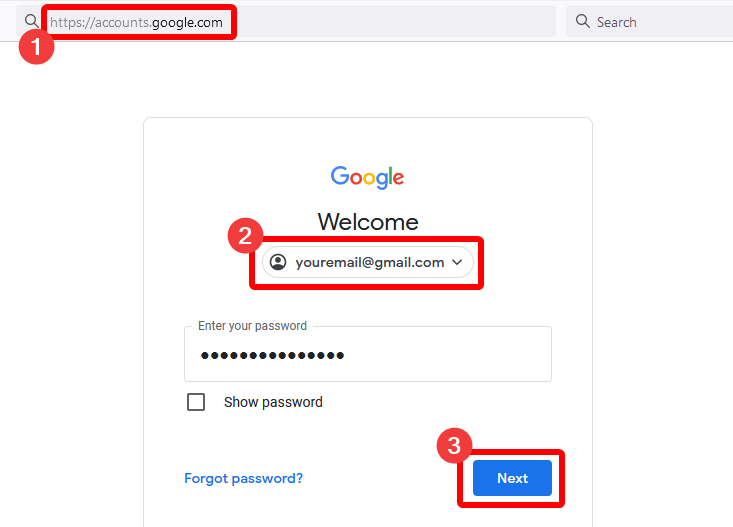
1. In your web browser, go to https://accounts.google.com and log in with the email address that your website uses to send you notification emails (the "from" address on your customer enquiries).
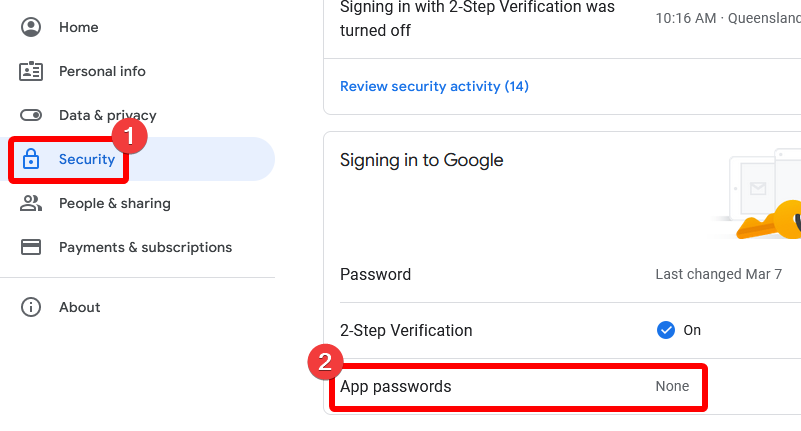
2. Once logged in, open the Security page and select 2-Step Verification. Note: if this setting is already on, skip to step 6.

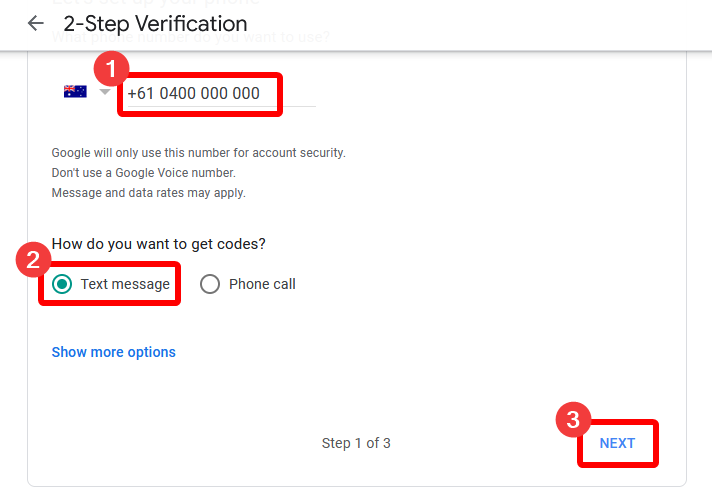
3. On the 2-Step Verification page, enter your mobile number, select Text message, and click next.
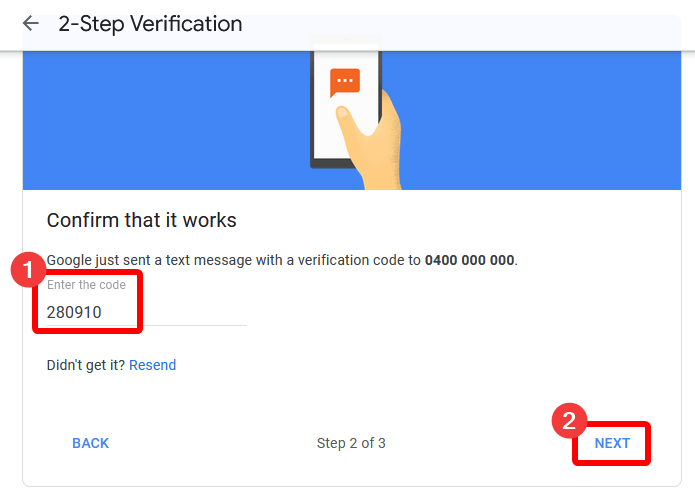
4. Google will send a text message to your mobile number, containing a 6 digit code (e.g. G-280910). Enter the code on this page and click next.
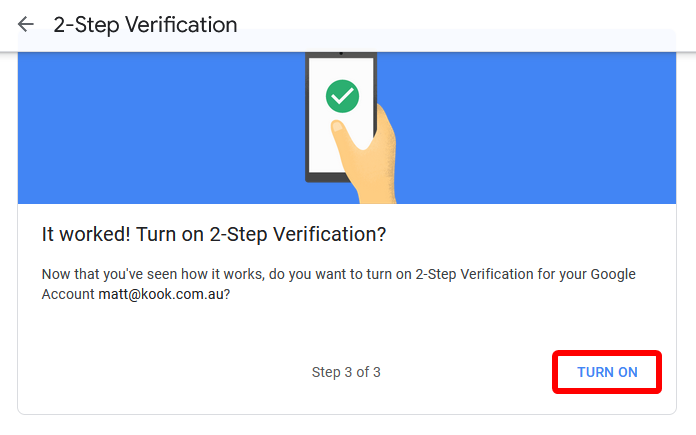
5. Once you have entered the code, click the button to Turn on 2-Step Verification.
6. Go back to the Security page again, select App passwords.
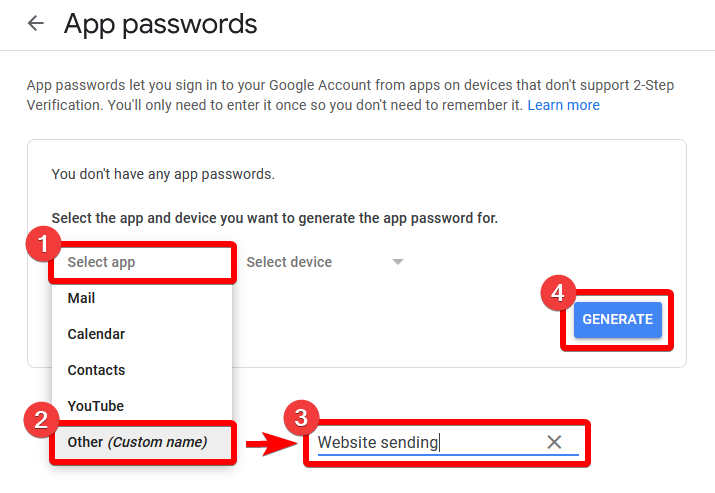
7. On the App passwords page, click Select app and choose Other (Custom name) from list. Name your app Website sending, then click generate.
8. A window will pop up showing a 16-character app password. Copy this password, and send it to your Kook support person. We will use this app password to update your website.

Similar posts
Google Ads lead forms extension allows businesses to collect leads without a website.
If your business has a website that converts poorly, or you want to present people interested in your business with the fastest way possible to send their information to you, this Google Ads extension may be perfect for you.

The Google Ads SEO shell game.
Ever play three-card monte? Or a good old-fashioned shell game? Digital marketing has a similar shell game involving Google Ads (formerly known as AdWords) and we’ve seen a few of our competitors use it to great effect.
We're ready to move,
are you?
No lock-in contracts.
No outsourcing.