
TikTok Ads - Assign Access
Grant partner access to your TikTok Business Centre Account.
Follow the steps below to give a new partner access:
- If you do not have one already, create a TikTok Business account.
- Download the TikTok app and create a personal account (using email/phone/social media).
- Once set up, click to the ‘Profile’ icon in the bottom right.
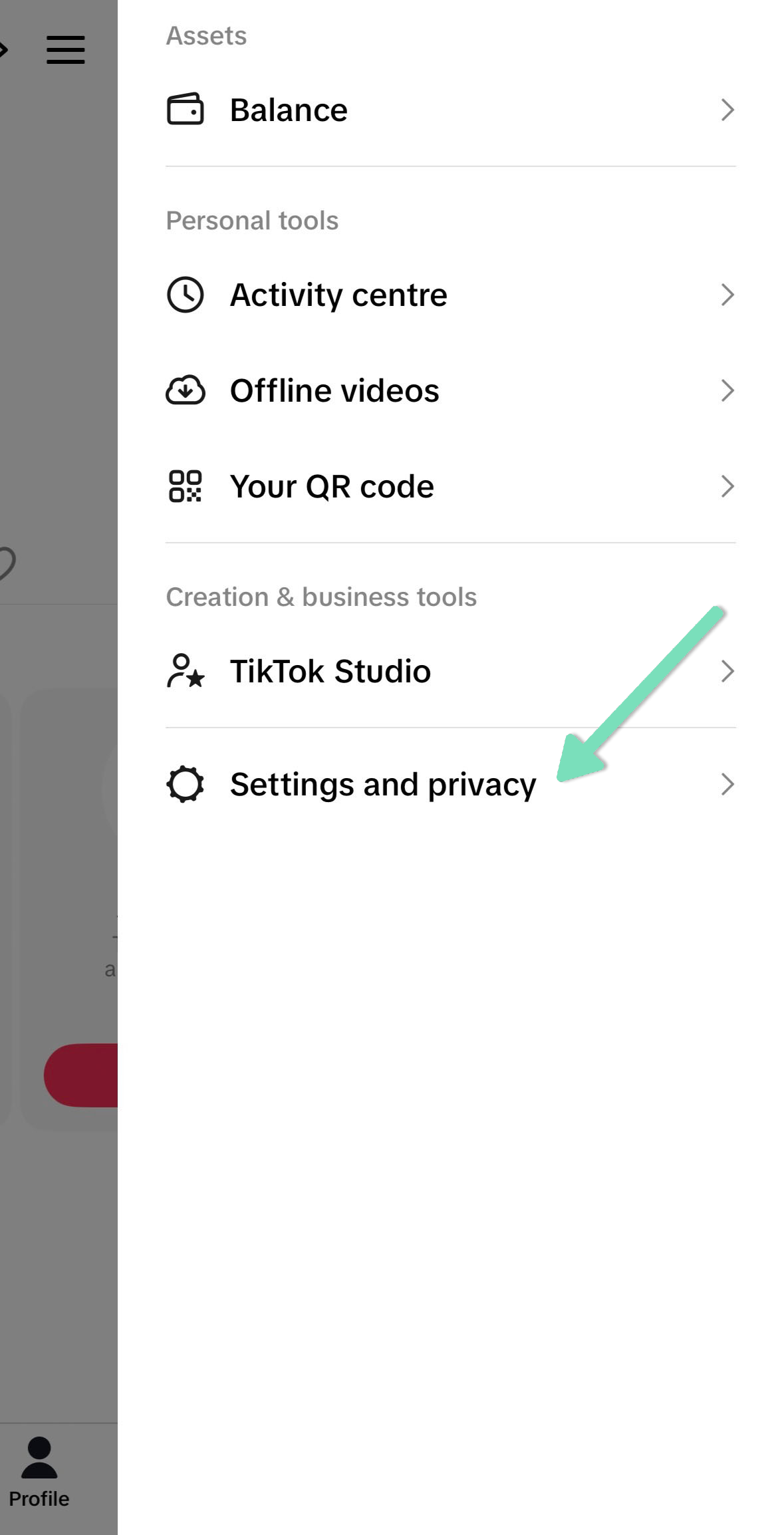
- Select the ‘Menu’ icon in the top right, then click ‘Settings and privacy’.
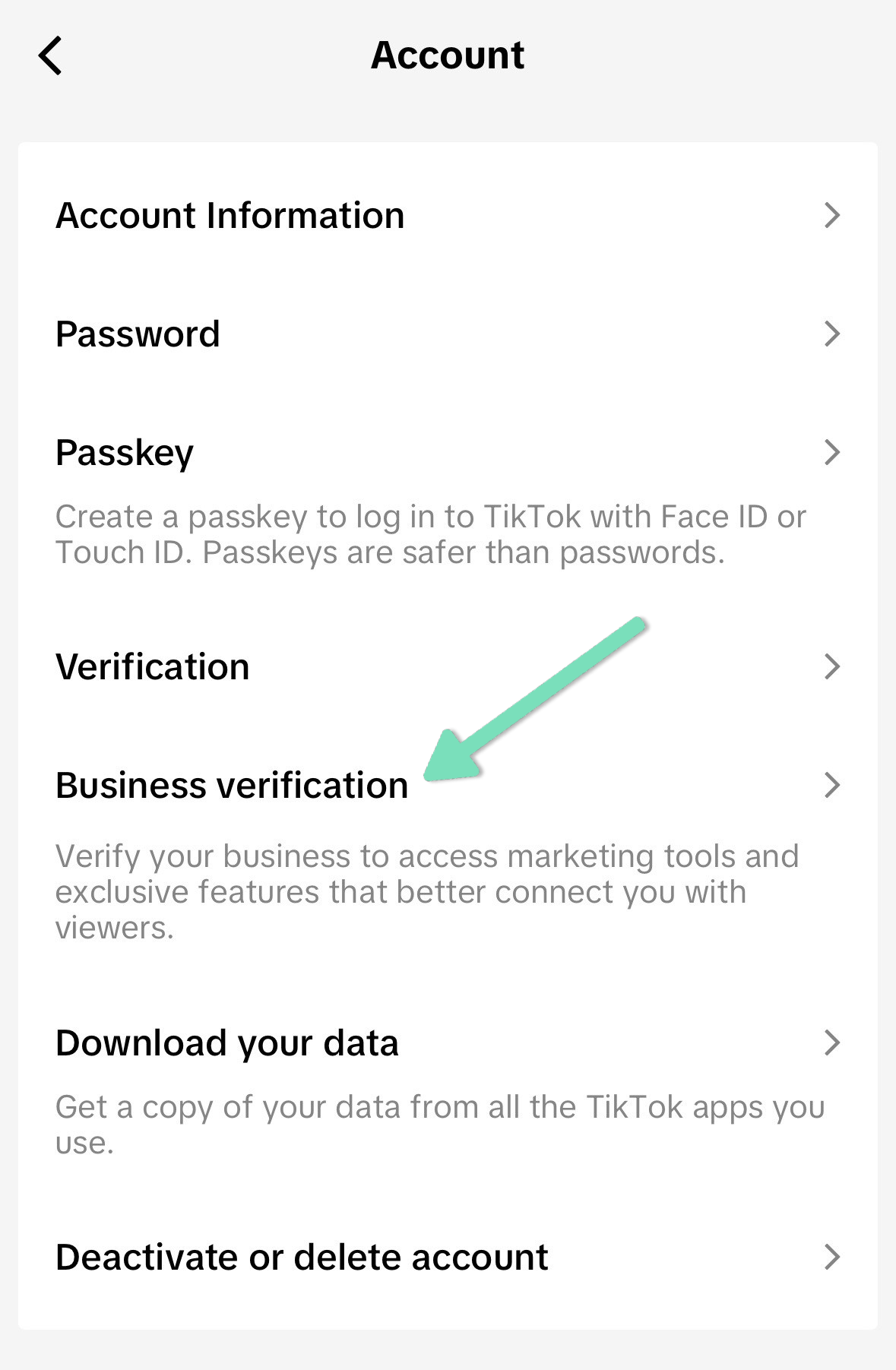
- Click on ‘Account’, then select ‘Business verification’.
- Follow the steps to submit your business information and documents so you can switch into a TikTok Business account.
- Accepted documents include an Official Business Incorporation or Registration Certificate, Official Extract from the Commercial Register, or Official Australian Charities and Not-for-profits Commission (ACNC) Certificate of Registration.
- If you do not have one already, create a Business Centre account.
- Simply navigate to https://business.tiktok.com/ and follow the steps to create an account.
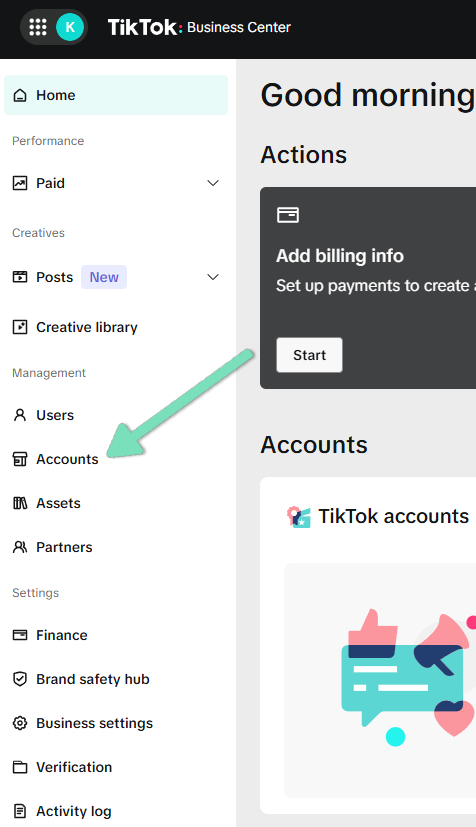
- Once set up, you will need to link your TikTok account by selecting ‘Accounts’ in the left-hand menu under ‘Management’.
- Click the ‘TikTok accounts’ tab and select ‘Add a TikTok account’.

- Choose ‘Link an existing TikTok account’ and follow the steps provided.
- Once you have completed the above steps, you can provide Kook with access to your Business Centre account.
- Navigate to https://business.tiktok.com/ again and check you are logged in with the correct account.
- Select ‘Partners’ in the left-hand menu under ‘Management’.
- Click ‘+ Add partner’ and search our Kook Business Centre ID: 7416576760957435905.
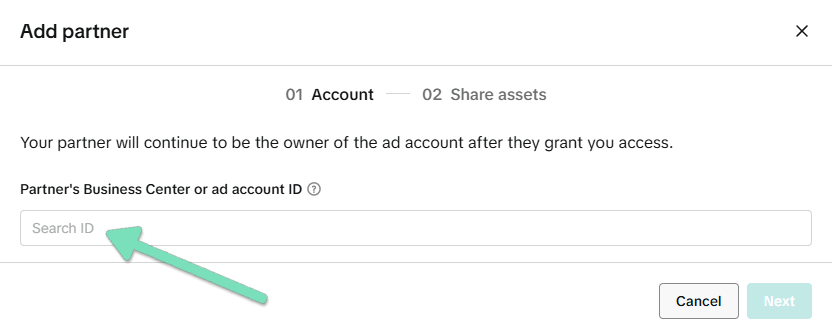
- Select ‘Next’ and provide the below access levels:
- Advertiser accounts: Admin
- Catalogues: Catalog management
- Pixels: Enable both settings
- Click ‘Next’ again and then ‘Confirm’.
Great job! You’ve added us as a partner. We’ll now be able to continue setting up your TikTok Ads campaign.
We're ready to move,
are you?
No lock-in contracts.
No outsourcing.
Thank you! Your submission has been received!
Oops! Something went wrong while submitting the form.